
Changing Password
To change your password, you need to follow these steps:
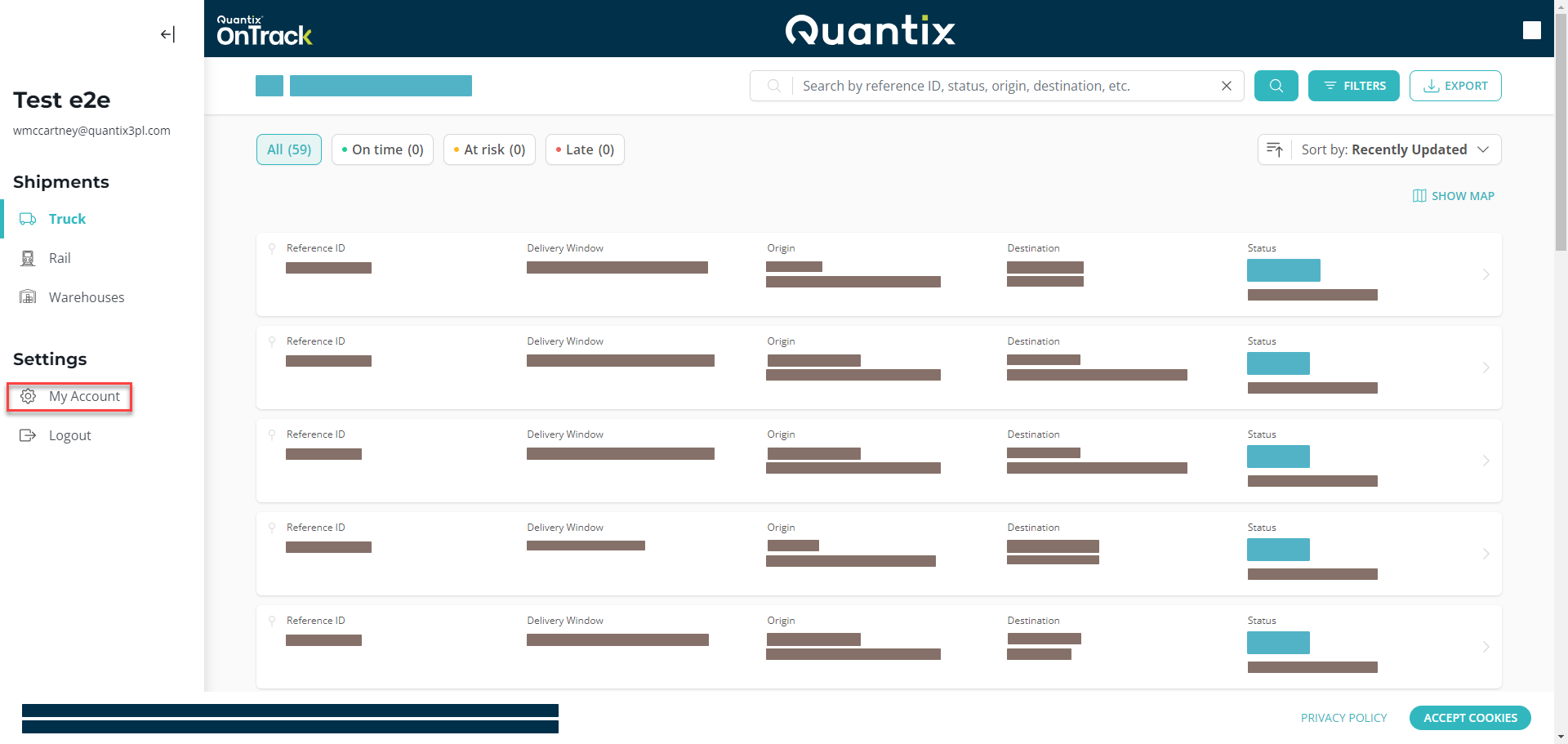
Click on the My Account button on the left side navigation menu.
Go to the Account Security section.
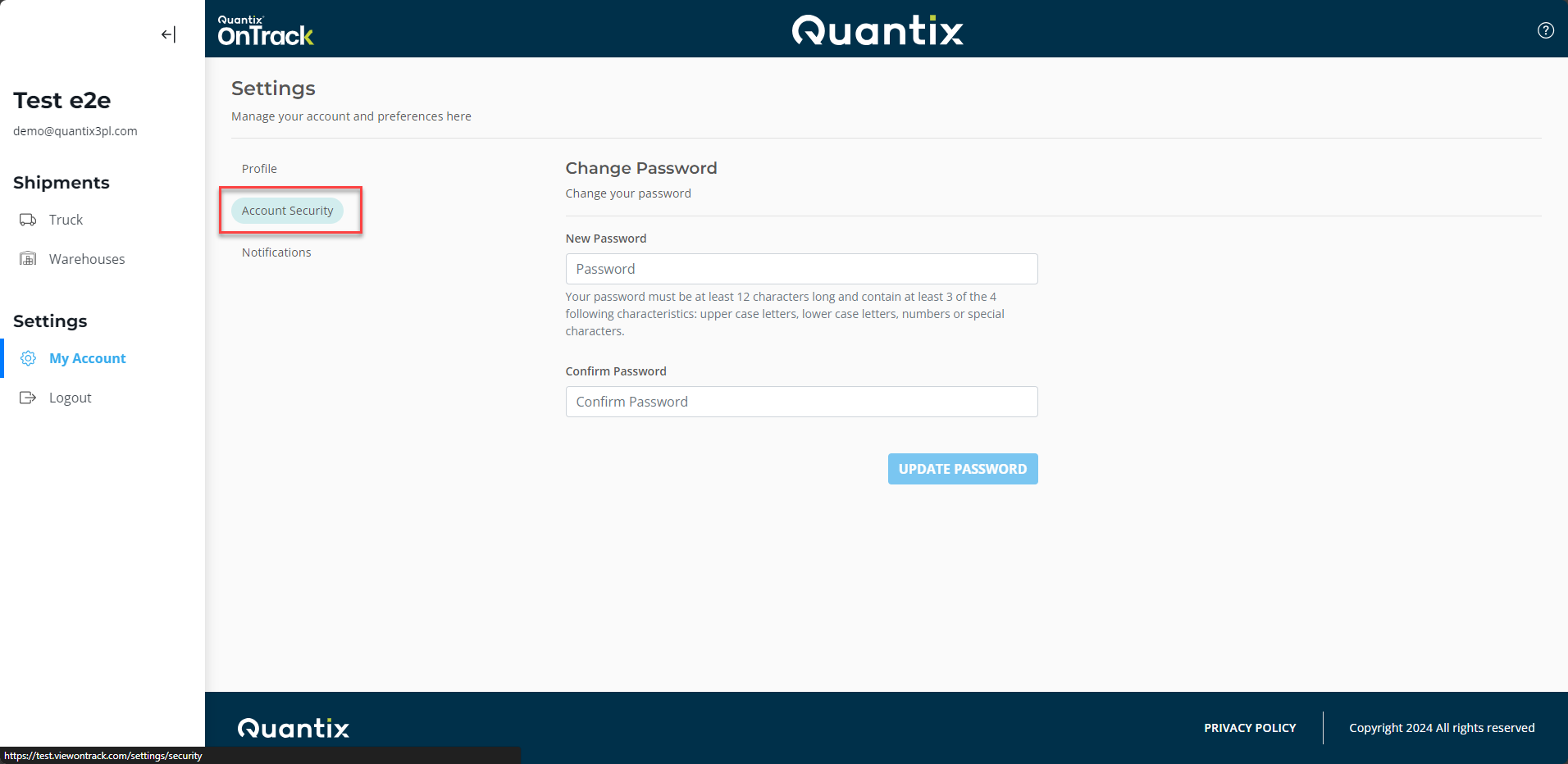
Here, you’ll need to complete the New Password field and then retype the password in the Confirm Password field.

Your password must be at least 12 characters long and contain at least 3 of the 4 following characteristics: upper-case letters, lower-case letters, numbers, or special characters.
Once you have entered a matching and approved new password, each field will be highlighted with a green border. Click the UPDATE PASSWORD button to save your new password.
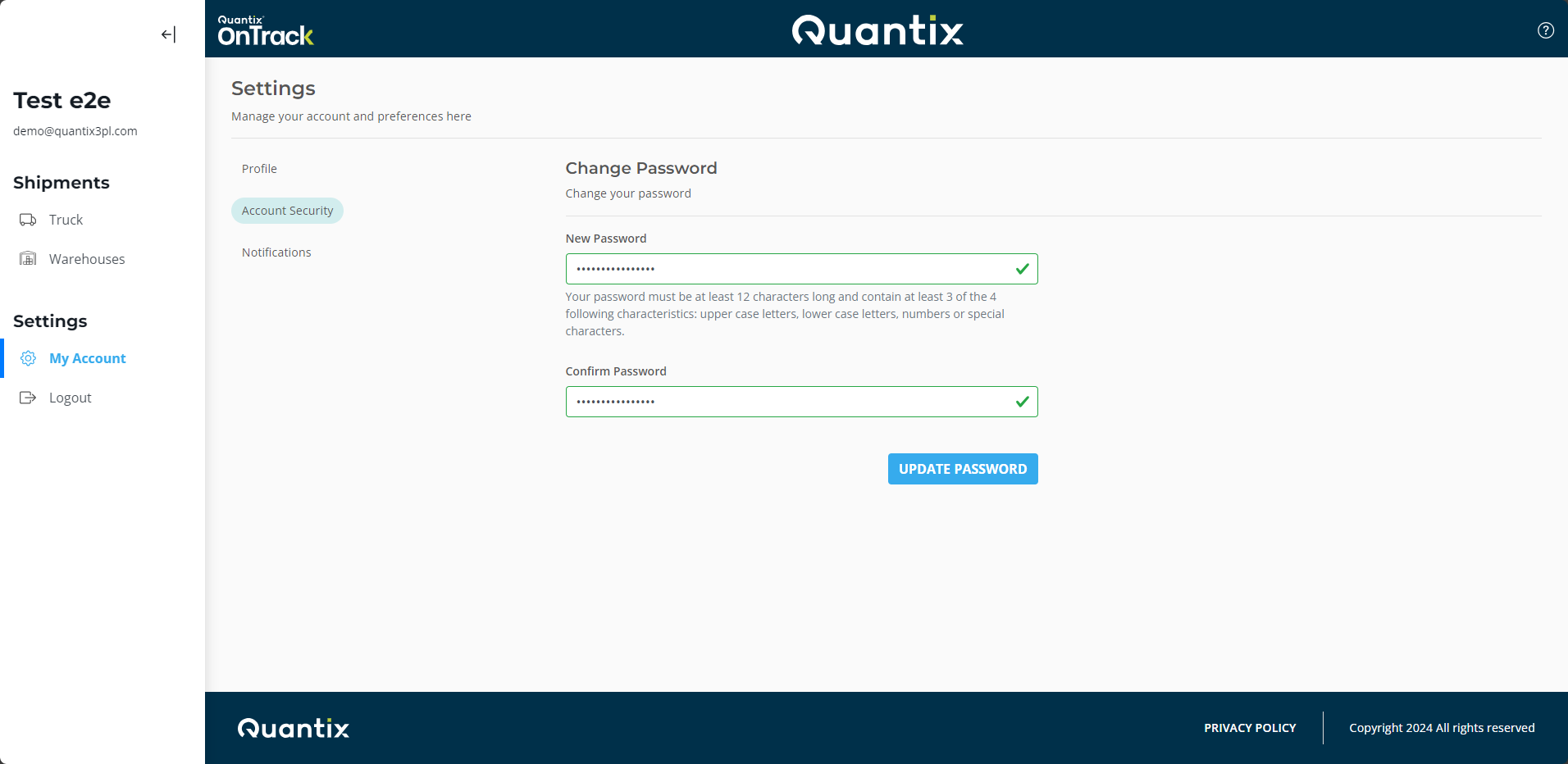
A success message will prompt at the top of the screen, indicating that you have successfully changed your password.
